Quick answer
Use Finder to confirm every installed app, Spotlight to jump to known names, and Launchpad to browse the whole library visually.
There is no single Tahoe view that replaces every part of the old Launchpad habit. Finder shows the raw list accurately. Spotlight launches fast when you know the name. Launchpad is the missing piece when you want one fullscreen surface to scan icons, remember pages, and open apps by recognition instead of recall.
If your real goal is one visual screen again, go straight to the download page, then use the Launchpad shortcut guide so the all-apps grid is always one action away.
A new install feels missing
You added an app and now want one obvious place where every installed app appears and stays easy to find.
You browse by icons
Many Mac users do not remember exact app names. They remember icon shape, page position, and rough category.
You want one all-apps screen
Search is fast, but it does not replace a visual overview when you want to scan everything before choosing.
Why “show all apps” became a real Tahoe question
Before Tahoe, many people used Launchpad as the place where all Mac apps became visible at once. That mattered less when you knew the exact app name and more when you relied on visual memory. After the old entry changed, users started searching for answers such as no Launchpad on macOS Tahoe, Launchpad removed on Mac, and then the practical follow-up: how do I see all my apps again, including newly installed ones?
Best option by goal
| Goal | Best tool | Why it fits |
|---|---|---|
| Confirm every installed app is present | Finder Applications folder | It shows the complete file-level app list in one place. |
| Open one app as fast as possible | Spotlight | It wins when you already know the exact name. |
| Keep a few daily apps permanently visible | Dock | It is best for favorites, not for your whole software library. |
| Browse everything by icon and category | Launchpad | It restores the fullscreen all-apps layer that Tahoe made harder to reach. |
Four practical ways to show all apps on macOS Tahoe
- Open Applications in Finder: press Shift-Command-A or use Go > Applications when you need the complete installed-app list. This is the best answer when you want to confirm a new app was copied into the right folder.
- Use Spotlight: press Command-Space when you already know the app name and just want it open quickly. This is the fastest path for exact recall, but not the best browsing tool.
- Pin daily apps to the Dock: keep high-frequency tools one click away, but avoid forcing the Dock to hold your whole library. If you try to use Dock as your only all-apps surface, it gets cluttered fast.
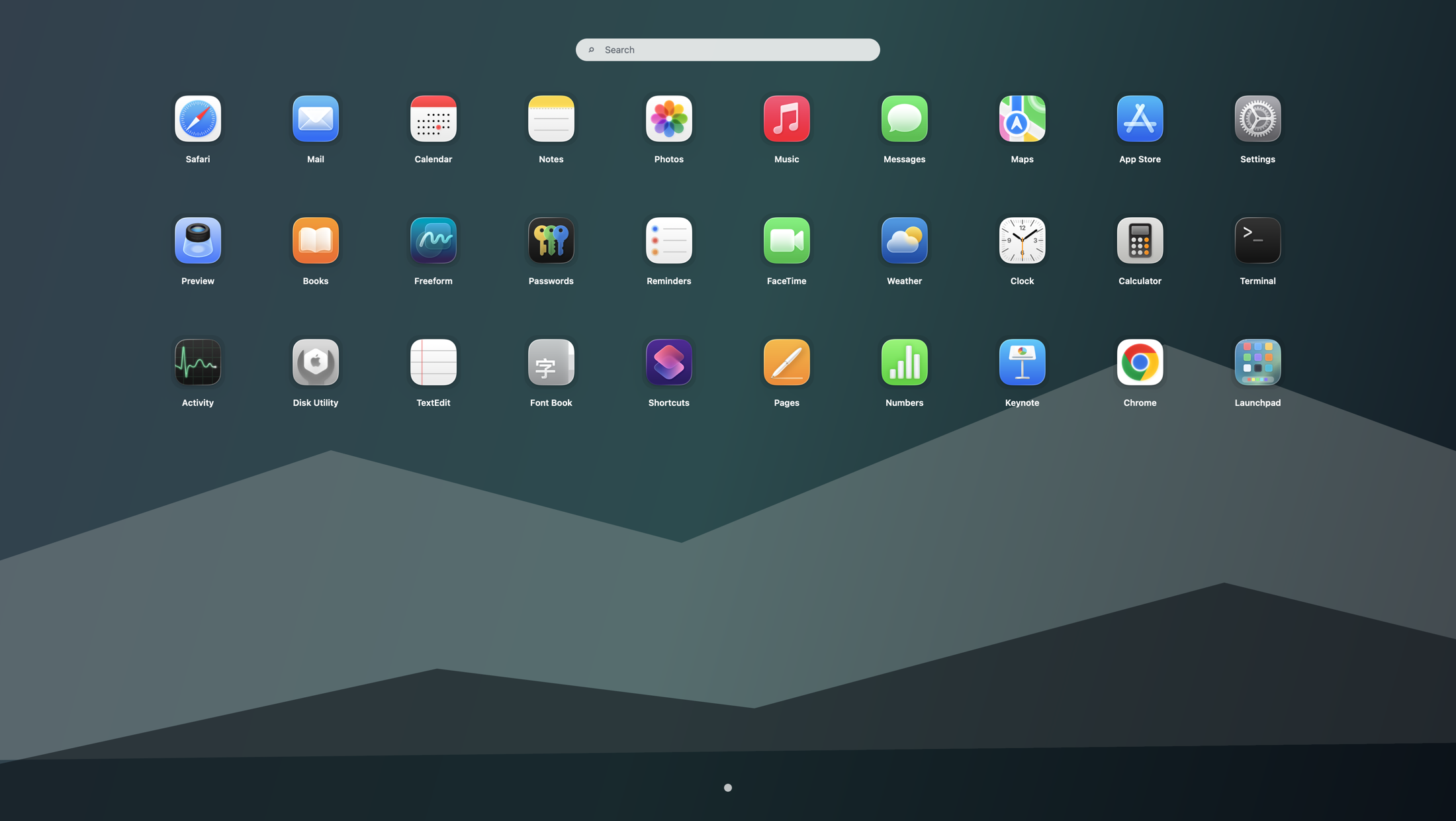
- Use Launchpad: open a fullscreen grid when you want one visual place to browse every app by icon, page, and category. This is the closest replacement for the older “show me everything” rhythm.
If you only need a list, Finder is enough. If you need a launcher that recreates the old “show me everything” rhythm, a dedicated fullscreen grid is the better fit. That is also why the broader Tahoe app launcher workflow works best when each tool handles a different job.
Want one all-apps screen again?
Launchpad gives Tahoe users a fullscreen app grid back without forcing Finder or Spotlight to do the wrong job.
If your search intent is really “show me all apps in one clean visual place,” skip straight to the restore flow. Then assign a hotkey or hot corner so the grid is always one step away.
If a new app does not seem to appear, check these first
- Make sure the app was actually moved into the Applications folder instead of left inside the DMG window or Downloads.
- Open Applications in Finder with Shift-Command-A and confirm the app is present there before troubleshooting anything else.
- Open the app once from Finder if macOS needs to complete its first-run security prompt.
- Use Spotlight to search the exact app name once, which is often faster than browsing during setup.
- If your real goal is not file confirmation but visual browsing, use Launchpad as the dedicated all-apps layer so new installs remain easy to scan later.
What a restored Launchpad solves that Finder and Spotlight do not
Finder proves an app exists. Spotlight opens an app you already remember. Neither one recreates the older browsing habit of opening a clean fullscreen surface, scanning by icon, and launching by recognition. That difference matters most if you keep many utilities installed or often think “I know what it looks like, but I do not remember the exact name.” For a deeper side-by-side, see Applications folder vs Launchpad on macOS Tahoe.
How to rebuild the old “all apps” experience in under a minute
- Install Launchpad for macOS.
- Assign a fast trigger using the shortcut guide or a hot corner.
- Keep a few daily apps in the Dock, but let Launchpad handle visual browsing for the full library.
- If your app count keeps growing, organize categories with the Launchpad folders guide.
If you also want a broader comparison, read Launchpad alternatives for macOS. If your main issue is library size rather than visibility, continue with Too many apps on Tahoe?. Chinese-speaking users can use the companion page: macOS Tahoe 怎么显示所有应用.
Search terms this guide answers
FAQ
How do I show all installed apps on macOS Tahoe right now?
Open Applications in Finder if you need the complete list, use Spotlight if you know the exact app name, and use Launchpad if you want one fullscreen view that is easier to browse visually.
Why does it feel harder to see all apps after upgrading to macOS Tahoe?
The old Launchpad entry changed in Tahoe, so many users no longer have the same fullscreen screen they relied on to view and launch all apps.
What should I check if a newly installed app does not feel visible yet?
First make sure the app was moved into Applications, then open Applications with Shift-Command-A and launch it once if needed. If your real issue is browsing instead of installation, use a fullscreen launcher so the whole library stays easy to scan.