Quick answer
If Launchpad is missing on macOS Tahoe, the workflow changed, not your apps.
Many Mac users search for "Launchpad missing on macOS Tahoe", "no Launchpad on Mac", or "bring back Launchpad" because the old visual habit is harder to reach after the update. Your apps are usually still available in Applications and Spotlight. What is missing is the old one-step fullscreen grid that made browsing by icon, page position, and rough category feel easy.
If that is the problem you are trying to solve, Launchpad for macOS is the direct fix: it restores a dedicated fullscreen app grid without forcing Finder, Spotlight, or the Dock to do the wrong job.
Launchpad missing
The app grid no longer feels like the old one-touch place to browse every installed app.
No fullscreen app grid
Spotlight is fast for typing, but it is not the same as scanning familiar icons and pages.
Need a Tahoe replacement
A dedicated launcher can restore visual browsing while keeping the rest of macOS unchanged.
Need to check what changed
Some users first need to know whether Launchpad was removed, renamed, or simply replaced by a different workflow.
Why “Launchpad missing on macOS Tahoe” is such a common search
Before Tahoe, Launchpad was the simplest visual map of a Mac app library. One gesture, shortcut, or Dock click opened a fullscreen grid. After the Tahoe change, users who browse by recognition instead of exact recall started searching for phrases like Launchpad removed on Mac, bring back Launchpad, and show all apps on macOS Tahoe. They are all different ways of describing the same missing browse layer.
What to check first if Launchpad feels gone
- Confirm the apps still exist: open Applications in Finder with Shift-Command-A. If the apps are there, the issue is not installation.
- Use Spotlight once: press Command-Space and type the app name if you just need to launch one known app quickly.
- Decide what problem you are really solving: if you want a file list, Finder is enough. If you want a visual all-apps surface again, you need a fullscreen launcher rather than a different search box.
Best tool by goal after the Tahoe change
| Goal | Best tool | Why it fits |
|---|---|---|
| Confirm an app is installed | Finder Applications folder | It shows the complete file-level app list. |
| Open one known app fast | Spotlight | It is the fastest route when you remember the exact name. |
| Keep a few daily apps visible | Dock | It works best for favorites, not for your full library. |
| Browse all apps visually again | Launchpad | It restores the fullscreen grid, pages, folders, and icon-based workflow many Tahoe users miss. |
How to restore the Launchpad-style workflow in a few minutes
- Download the DMG: start from the official Launchpad download page.
- Move Launchpad into Applications: install it like a normal Mac app so it stays part of your library.
- Open and activate: launch the app once and enter your activation code after purchase.
- Set how you want to open it: use the shortcut guide to assign a hotkey, hot corner, or menu bar entry.
- Rebuild your visual browsing habit: use pages, search, and the folders guide so apps stay easy to scan by category.
Need the old grid back?
Launchpad restores the missing fullscreen browse layer without replacing the rest of macOS.
Keep Spotlight for exact search. Keep Finder for file-level confirmation. Keep the Dock for daily favorites. Then use Launchpad as the visual overview layer that Tahoe users keep searching for.
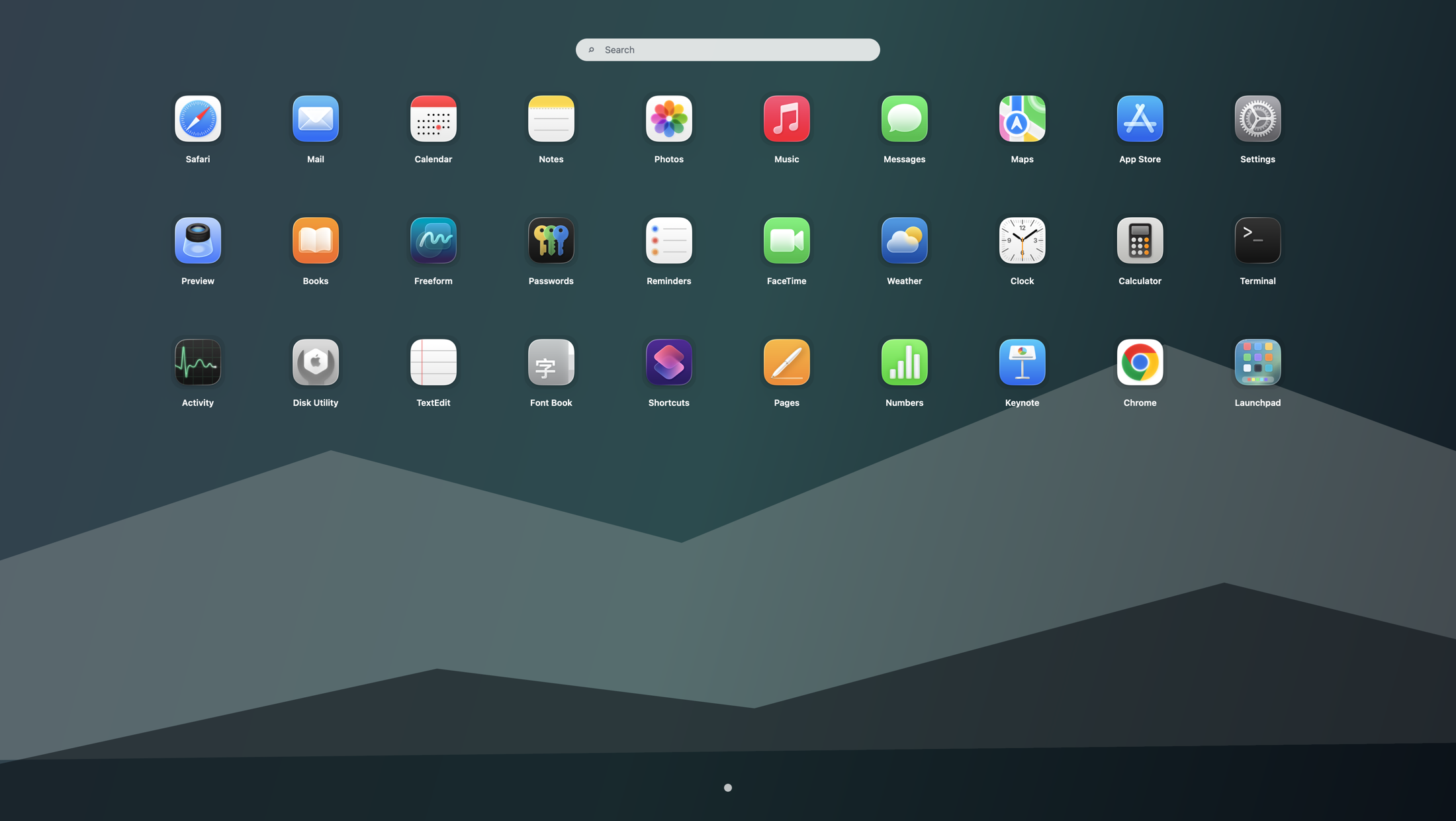
When Launchpad is better than Spotlight, Finder, or Dock folders
Spotlight is still the best tool when you already know the app name. Finder is still the best place to confirm an app exists. The Dock is still the best place for daily favorites. Launchpad solves a different problem: opening one clean visual overview, scanning icons, moving between pages, and launching without thinking about the exact name. That is also why many Tahoe users end up comparing Applications folder vs Launchpad and Dock folders vs Launchpad before they realize the missing piece is a dedicated fullscreen browse layer.
Recommended Tahoe workflow after the fix
Use Spotlight for typed search, keep only your daily apps in the Dock, and use Launchpad when you want the old fullscreen app overview. This layered setup gives you the speed of modern macOS without losing the visual workflow many users built over years. The fuller version of that setup is covered in the Tahoe app launcher workflow guide.
Which related guide should you open next?
If you mainly want to understand what Apple changed, continue to what changed in Tahoe. If your real goal is to show all apps on macOS Tahoe, that page compares Finder, Spotlight, Dock, and fullscreen browsing directly. If the missing part is one-step access, go next to the Launchpad shortcut guide. If you are still comparing options, use the alternatives page. Chinese-speaking users can start from the Chinese support home.
Search terms this guide answers
FAQ
Why is Launchpad missing on macOS Tahoe?
For users who depended on the old fullscreen grid, the Tahoe app-launching workflow feels different enough that Launchpad seems missing. In most cases, the apps are still there, but the old browse layer is harder to reach.
Did Apple remove Launchpad entirely?
The old behavior changed enough that many people search as if Launchpad disappeared. If you want the familiar fullscreen grid again, the practical fix is to restore that browse layer directly instead of forcing Finder or Spotlight to replace it.
Can I bring back Launchpad on macOS Tahoe?
Yes. Launchpad for macOS restores a fullscreen app grid with search, pages, folders, hotkeys, hot corners, and layout settings.
What should I check first if I just installed a new app?
Open Applications with Shift-Command-A, confirm the app is there, and launch it once if needed. If your real issue is browsing the whole library, use a fullscreen launcher so everything stays easy to scan later.
Is this only for macOS Tahoe?
It is mainly for macOS Tahoe 26 and newer. Earlier macOS versions still have the classic built-in Launchpad, so they usually do not need this replacement as much.