Quick answer
Use Spotlight for known names, the Dock for frequent apps, Finder for management, and Launchpad when you want the old fullscreen browse-and-open grid back.
Most Tahoe users searching for a Launchpad alternative are not actually choosing one tool. They are deciding which surface should replace the part of the old workflow they miss most. If the missing piece is visual scanning, a dedicated fullscreen launcher is the closest match.
Do you know the app name?
If yes, Spotlight usually stays fastest because typed recall beats browsing for direct launches.
Do you open it every day?
If yes, the Dock is still the right home because daily favorites should stay one click away.
Do you browse by recognition?
If yes, a fullscreen app grid is usually the missing layer because it restores pages, icon memory, and calmer visual scanning.
Compare the main Launchpad alternatives on Tahoe
| Option | Best when | Where it falls short |
|---|---|---|
| Spotlight | You know the exact app name and want the fastest typed launch. | Weak for browsing by icon, page position, or visual memory. |
| Dock folders | You need a small, fixed group of favorite or category-based apps. | Gets crowded fast and does not recreate a clean fullscreen app view. |
| Finder Applications | You need the raw app list, package details, or file-level management. | Finder answers "where is the app file?" better than "what is the fastest way to browse and open apps?" |
| Launchpad | You want the old fullscreen grid, folders, search, paging, and visual browse rhythm back. | Requires installing a dedicated app, but it is the closest fit for the old habit. |
Which alternative fits which kind of Mac user?
- Choose Spotlight if you mostly launch by typing and rarely need an overview of your whole app library.
- Choose Dock folders if you only need a few app groups and already organize around the Dock.
- Choose Finder Applications if your goal is file access, uninstall checks, or app management rather than everyday launching.
- Choose Launchpad if you used to open the old grid mainly to scan, remember icon positions, move across pages, or launch occasional apps without exact-name recall.
This is why searches such as no Launchpad on macOS Tahoe, how to show all apps on Tahoe, and too many apps on Tahoe often end at the same answer: text-first tools are not always the right replacement for a visual launcher.
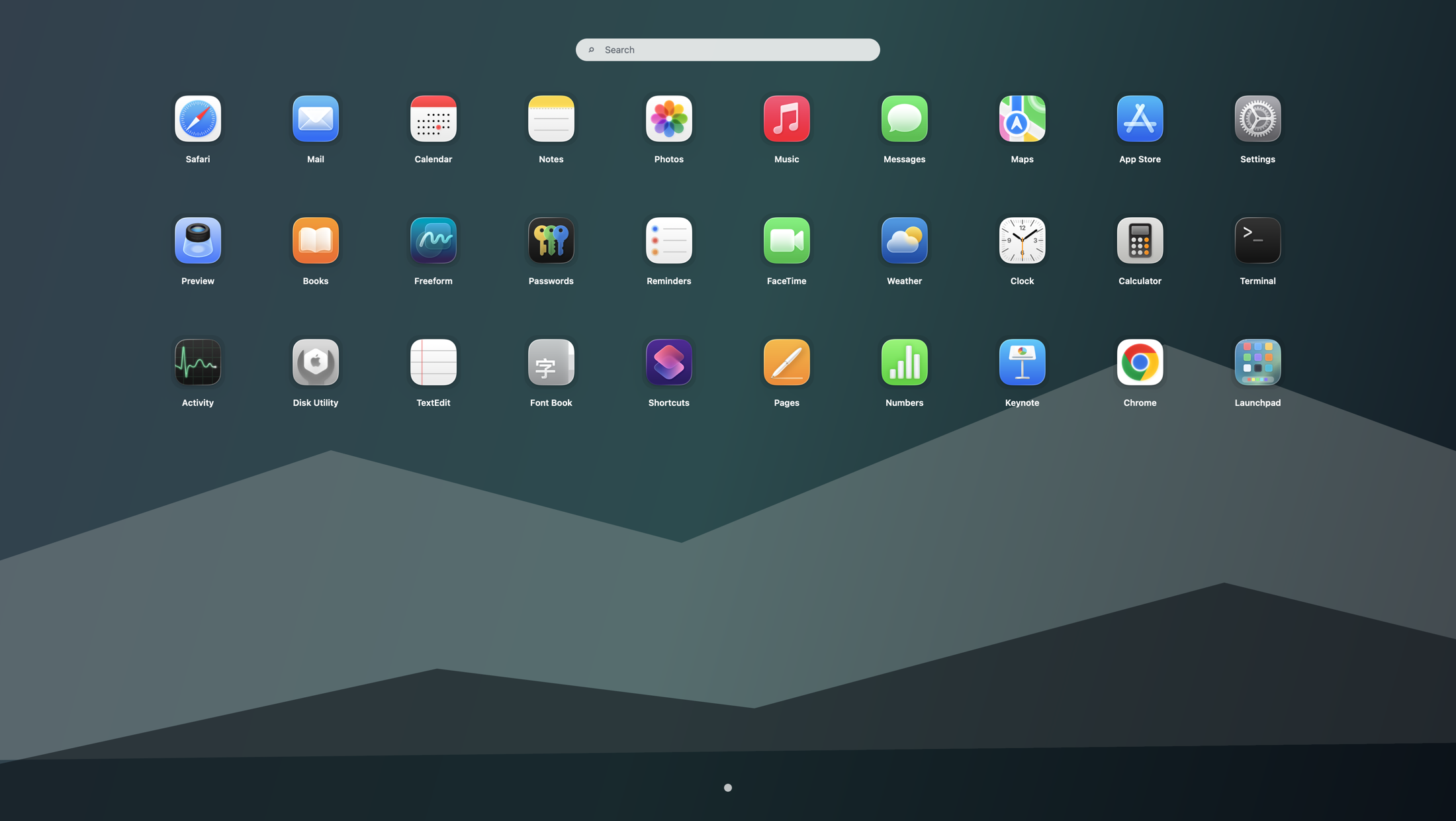
What makes a fullscreen launcher different from the other options
A fullscreen launcher is the only option here that is designed around recognition instead of recall. You open one surface, scan icons, remember pages, and click. That makes it a stronger fit for users who built years of muscle memory around the old Launchpad. If your main issue is one-step access, keep reading with Launchpad shortcut on Tahoe. If your main issue is organization, continue with Launchpad folders on Tahoe.
Recommended Tahoe setup instead of one "winner"
The best practical answer is a layered workflow rather than a single replacement. Keep Spotlight for exact-name search. Keep the Dock for daily apps. Keep Finder for management. Then use Launchpad as the fullscreen browse layer. The broader setup is covered in the Tahoe app launcher workflow guide, and Chinese-speaking users can use the companion page macOS Tahoe 启动台替代方案怎么选.
Search terms this guide answers
FAQ
What is the best Launchpad alternative on macOS Tahoe?
The best answer depends on the job. Spotlight is best for exact-name search, the Dock is best for favorites, Finder is best for app-file management, and Launchpad is best for restoring the old fullscreen browsing habit.
Can Spotlight replace the old Launchpad experience by itself?
No. Spotlight is excellent when you already know what to type, but it does not recreate the old grid for browsing by icon recognition, page memory, and visual scanning.
Who should choose a fullscreen launcher instead of Dock folders or Finder?
People with large app libraries, strong visual memory, shared Macs, or a long Launchpad habit usually benefit most from a dedicated fullscreen grid.