Quick answer
Use Launchpad folders for visual grouping, keep the Dock small, and let Spotlight handle exact-name search.
If your real query is “how do I group Mac apps like the old Launchpad,” the practical fix is to restore a dedicated fullscreen grid with folders. Finder can store apps, but it is not designed for fast browse-and-open. The Dock is fast for favorites, not large libraries. Launchpad folders bring back the missing middle layer, especially if you are already comparing Dock folders vs Launchpad or Applications folder vs Launchpad.
Did macOS Tahoe remove Launchpad folders?
For many users, yes in practice. The old fullscreen Launchpad flow changed enough that folder-based browsing no longer feels like the same feature. That is why people search for phrases like “Launchpad folders macOS Tahoe,” “did Tahoe remove Launchpad folders,” and “old Launchpad folders missing.” A dedicated fullscreen grid with folders is the closest way to restore that missing behavior.
Your Dock got crowded
Without a folder-based grid, users start pinning too many apps and lose the speed the Dock is supposed to provide.
You remember groups, not names
Many people open apps by recognizing icon clusters such as work tools, utilities, or media apps instead of typing exact names.
You want calmer app discovery
A good folder system lets you scan categories first, then choose, without turning every launch into a text search.
Why Launchpad folders still matter on Tahoe
Launchpad folders solve a different problem than search. They help when you want to keep related tools together, browse visually, and reduce the number of decisions happening inside the Dock. That is why this topic connects naturally with too many apps on macOS Tahoe and the broader app launcher workflow question.
How to get Launchpad folders back on macOS Tahoe
Install Launchpad, reserve the first page for the apps you browse most often, and use folders for stable groups like Work, Utilities, Creative, and Rarely Used. This recreates the old “open the grid first, then scan by icon group” rhythm that Tahoe disrupted.
Start with a small folder map that stays stable
- Work: daily business apps, documents, messaging, and project tools.
- Utilities: backup, cleanup, terminal, compression, and maintenance apps.
- Creative: design, audio, video, writing, and image tools.
- Browsers and web: separate browser profiles, dev browsers, and web wrappers.
- Rarely used: admin tools and utilities you need occasionally but do not want in the Dock.
The goal is not to create dozens of tiny folders. The goal is to rebuild a stable visual map. If you want to pair folders with a one-step launcher trigger, continue with Launchpad shortcut on Tahoe.
Use pages and folders for different jobs
| Layout layer | Best use | What to avoid |
|---|---|---|
| First page | Your most-opened apps that you still want in a visual grid instead of the Dock. | Filling it with every app you touched once last week. |
| Folders | Apps you recognize as a group: work tools, creative tools, admin tools, browsers, or client-specific stacks. | Creating too many one-app folders or naming folders so narrowly that they age badly. |
| Later pages | Lower-frequency tools you still want available without opening Finder. | Mixing random apps there with no logic or page identity. |
A 10-minute setup that stays clean
- Start from the show all apps guide if you first need a complete view of everything installed.
- Reserve the first page for the 8 to 12 apps you browse often but do not want pinned permanently in the Dock.
- Create only a few durable folders, then move related apps by workflow instead of by alphabet or vendor name.
- Keep your Dock focused on true daily drivers, not as a backup all-apps list. If you are deciding between the two, compare Dock folders vs Launchpad.
- Keep Spotlight for exact-name launches and let folders handle visual browsing. The full split is covered in the Tahoe app launcher workflow guide.
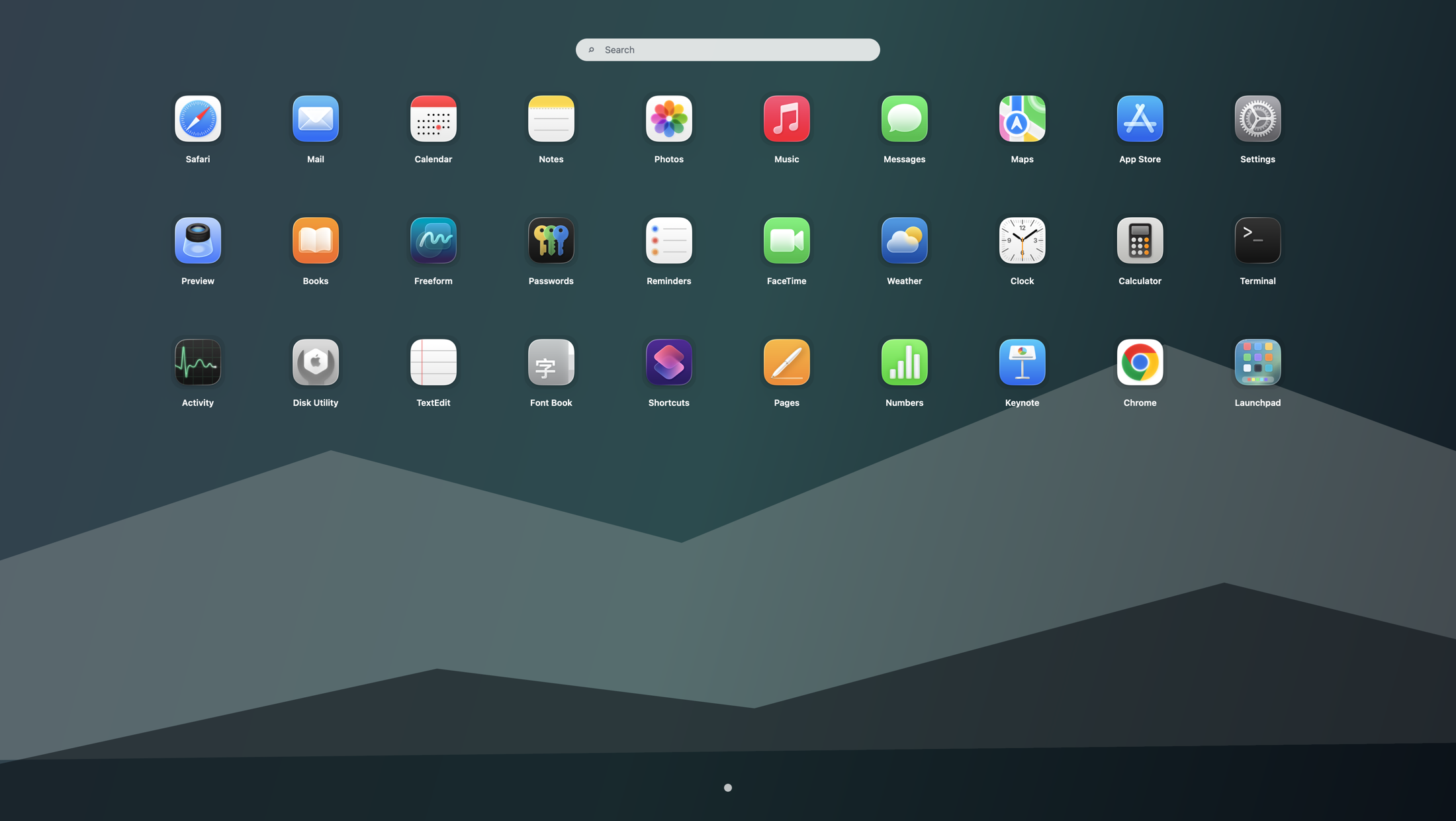
When folders beat the Dock or Finder
Folders are better than the Dock when your library is too large for a favorites-only strip. They are better than Finder when you want an immediate visual browser instead of a file manager. They also help users searching for how to show all apps because once every app is visible, the next problem becomes organizing what you see.
Are Dock folders enough if you miss Launchpad folders?
Usually not once your app library grows past a handful of categories. Dock folders are useful for a few quick stacks, but they do not recreate the old fullscreen page-and-folder overview that helped many Tahoe users scan by icon memory. If you are deciding between the two, use Dock folders vs Launchpad for the side-by-side comparison and keep this guide focused on rebuilding the folder workflow itself.
Common mistakes that make Launchpad folders slower
- Too many folders: if every category has two apps, you turned browsing into extra clicks.
- Alphabet-first grouping: a file-manager mindset is weaker than a workflow mindset for daily launching.
- Using the Dock as a second app library: if the Dock is crowded, folders are already doing a job it should not do.
- No shortcut or hot corner: the best folder system still needs a fast trigger, so pair it with the shortcut setup.
When Launchpad folders are the wrong tool
If you always know the exact app name, Spotlight is faster. If you are verifying installs or opening app bundles, Finder still matters. If you are deciding among several replacement approaches, read Launchpad alternatives for macOS Tahoe or Applications Folder vs Launchpad before over-organizing your launcher.
How to restore the old organized Launchpad feel
Install Launchpad, group apps into a few durable folders, and use pages to separate high-frequency tools from occasional tools. That gives you back the old “open once, scan by group, launch fast” behavior. Chinese readers can use the localized page at macOS Tahoe 启动台文件夹怎么整理. If you only need the base install steps, start with bring back Launchpad on macOS Tahoe.
Search terms this guide answers
FAQ
Did macOS Tahoe remove Launchpad folders?
Tahoe changed the old Launchpad workflow enough that many users feel the folders disappeared with it. Launchpad restores a fullscreen grid with folders so you can group apps visually again.
Can I still organize Mac apps into Launchpad-style folders on macOS Tahoe?
Yes. Launchpad restores a fullscreen grid with folders so you can group apps by task, category, or frequency instead of relying only on Dock icons or typed search.
Why do Launchpad folders matter if Spotlight still works?
Because search and folders serve different moments. Spotlight is best when you know the name. Folders are better when you browse visually and want related tools kept together.
What is the best folder structure for a large Mac app library?
Start with a few durable groups like Work, Utilities, Creative, Browsers, and Rarely Used. Keep the Dock short and let folders handle the visual map.
Should I organize Launchpad folders by app type or by workflow?
Workflow usually works better. Folder names like Work, Client Tools, Writing, or Maintenance stay useful longer because they match how you decide what to open.
Are Dock folders enough if I miss Launchpad folders on Tahoe?
Usually not for larger app libraries. Dock folders can help with a few stacks, but they do not recreate the old fullscreen pages-and-folders browsing rhythm. If that comparison is your real question, continue with Dock folders vs Launchpad.