Quick answer
Dock folders are useful for small groups. Launchpad is better for full-library visual browsing.
If your real question is “what should replace Launchpad on Tahoe,” the answer is usually not Dock folders alone. Use the Dock for a few high-frequency app groups, keep Spotlight for exact-name launches, and use Launchpad when you want the old fullscreen app grid with pages, scanning, and icon memory.
Dock stacks feel cramped
Folders in the Dock help only until one stack starts hiding too many apps behind one tiny opening gesture.
You miss browsing by icon
The old Launchpad worked because you could scan pages and positions, not because it stored apps in a single folder list.
You want one calm overview
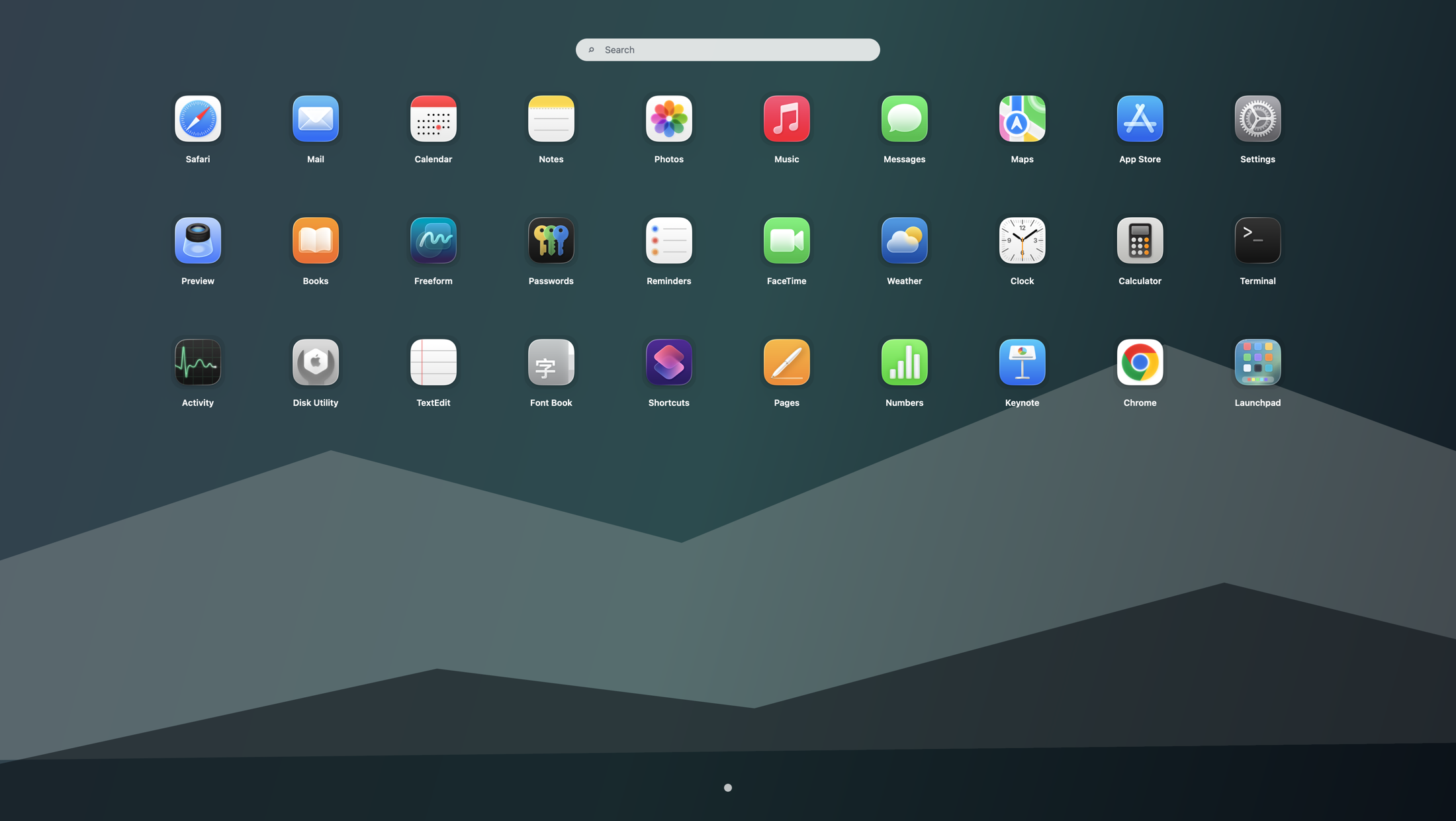
A fullscreen app grid gives you a stable visual surface that Dock folders and Finder do not really recreate.
Why Dock folders became the first workaround after Tahoe
Dock folders are built in, easy to reach, and familiar to many Mac users. That makes them the obvious first experiment after searches like “no Launchpad on macOS Tahoe” or “Launchpad removed on Tahoe”. But the comparison breaks down quickly because Dock folders are still a compact shortcut surface, not a dedicated browsing layer.
When Dock folders are enough
- You only need two or three groups, such as work, utilities, and media.
- You already keep the Dock minimal and do not mind pointer-based opening.
- You launch most other apps through Spotlight because you remember exact names.
When Dock folders stop feeling like a real Launchpad replacement
- Your app library is large enough that each folder becomes its own mini-clutter problem.
- You remember apps by icon placement, not just by name.
- You want a fullscreen overview that feels separate from windows, badges, and Dock noise.
- You want page-based browsing, larger targets, and a calmer “open first, choose second” flow.
A practical Tahoe workflow that uses both
- Keep the Dock for true daily apps and one or two small folders.
- Use Spotlight when you know the app name and want speed.
- Open Launchpad when you want the old full-screen visual scan back.
- Set a hotkey or hot corner so the grid feels as immediate as the old habit.
This layered approach works better than forcing one tool to cover every job. If you want the broader launcher stack, read the app launcher workflow guide. If you are organizing by category, continue with Launchpad folders on Tahoe. Chinese-speaking users can use the companion page macOS Tahoe 里 Dock 文件夹能代替启动台吗.
Search terms this guide answers
FAQ
Can Dock folders replace Launchpad on macOS Tahoe?
Only partially. Dock folders are fine for a few grouped shortcuts, but they do not fully replace the old Launchpad experience if you browse a larger app library visually.
When are Dock folders enough for app launching on a Mac?
They are enough when you keep a small Dock, use only a few groups, and rely on Spotlight for most exact-name launches.
What is the best workflow if I miss the old Launchpad grid after upgrading to Tahoe?
Use the Dock for favorites, Spotlight for names, and Launchpad for fullscreen browsing. That restores the old app-grid habit without replacing the rest of macOS.