Quick answer
Launchpad was not literally removed, but the old fullscreen browse-and-open flow changed enough that many Tahoe users now experience it as missing.
If your search is really “where did Launchpad go on macOS Tahoe” or “why is Launchpad missing on Mac,” the practical answer is to restore the missing visual layer. Spotlight still helps when you know the app name. The Dock still helps with favorites. What many people miss is the fullscreen grid that lets them see everything, scan icons, remember pages, and open occasional apps without typing.
The visual app map broke
Users who relied on icon recognition and page memory lost the one surface that held the whole app library together.
Search is not the same thing
Spotlight is fast for known names, but it does not replace a fullscreen overview when you want to browse before choosing.
The Dock cannot scale forever
A crowded Dock or a few small folders cannot recreate the calmer browse layer that old Launchpad users were used to.
What changed in macOS Tahoe
macOS Tahoe 26 still lets you open apps, but it pushes people toward different surfaces for different tasks. That works well for users who launch by search or keep a tiny Dock. It works less well for people who used Launchpad as a stable visual map of everything installed on the Mac. That is why searches like no Launchpad on macOS Tahoe, how to show all apps, and too many apps on Tahoe often describe the same missing habit from different angles.
What people usually mean by “Launchpad removed” or “Launchpad missing”
- “I can no longer open one fullscreen grid and browse all my apps visually.”
- “I do not want to type every app name into Spotlight.”
- “My Dock is only for favorites, not for my whole library.”
- “I miss folders, pages, and position memory when opening occasional apps.”
In other words, the complaint is usually about workflow loss, not about raw app access. Finder still knows where app files live. Spotlight still finds app names. But the old fullscreen browsing layer is what many Tahoe users actually want back.
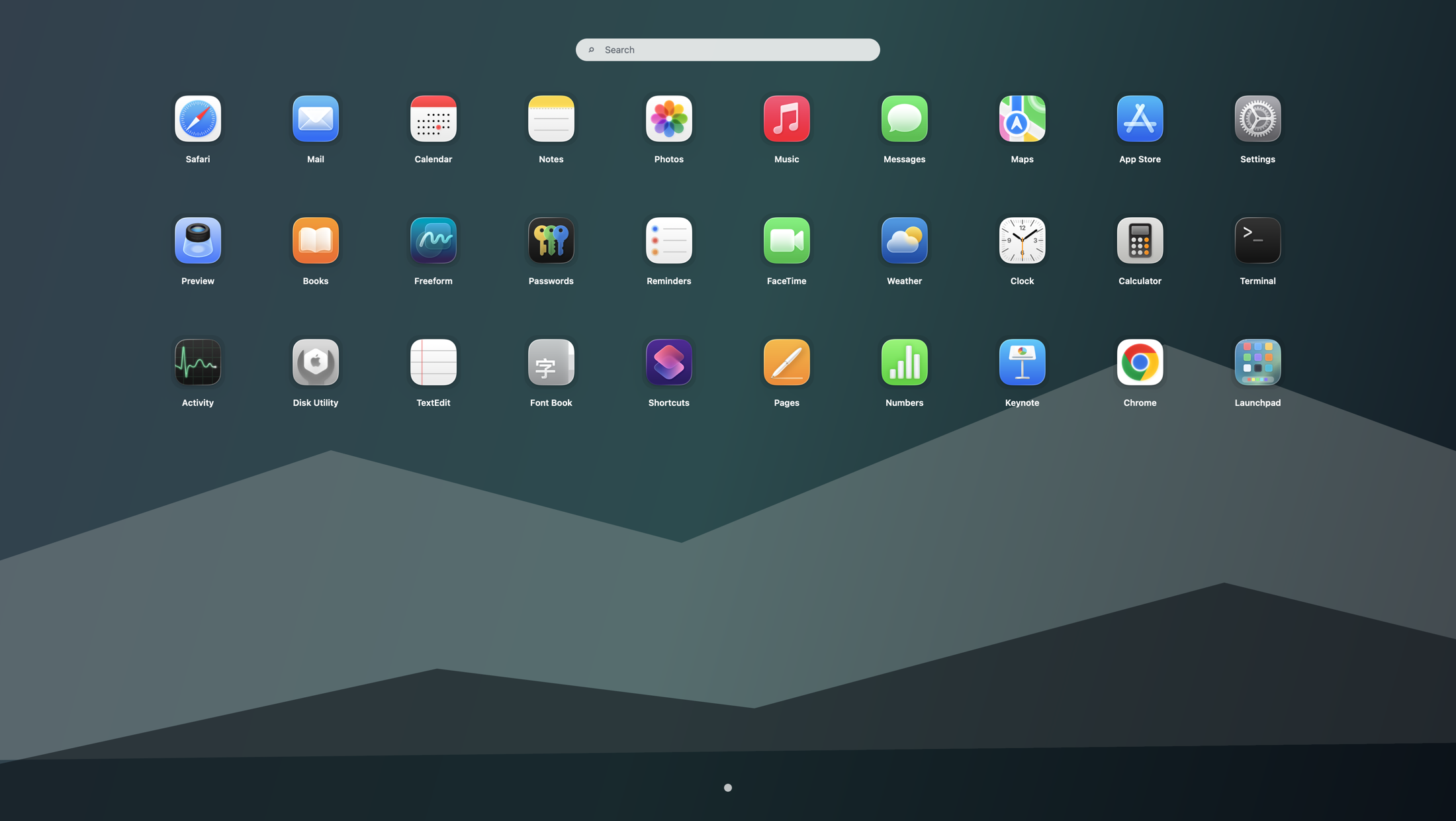
Fastest way to restore the old Launchpad feel
- Download Launchpad: start from the official download page.
- Move it into Applications: keep the app in the normal Mac location.
- Activate it: enter the activation code after checkout.
- Choose your trigger: use a shortcut, hot corner, or menu bar entry so the grid is one action away.
That setup restores the part of the old habit Tahoe disrupted, without forcing one tool to do every job. For the full install sequence, continue with bring back Launchpad on macOS Tahoe.
How this compares with Spotlight, Dock folders, and Finder
Spotlight remains best for exact-name recall. The Dock remains best for high-frequency favorites. Finder remains best for file-level management. Launchpad is the closest match when the thing you miss is a dedicated fullscreen overview. If you want the broader comparison, read Launchpad alternatives on macOS Tahoe. If you are deciding between compact groups and a real browse layer, continue with Dock folders vs Launchpad.
Who should restore a fullscreen launcher
A dedicated fullscreen launcher helps most when you have many installed apps, rely on visual memory more than typed recall, share one Mac across different tasks, or simply built years of muscle memory around the old Launchpad grid. If your main next question is how to open it quickly, use the Launchpad shortcut guide. If your main next question is how to group apps again, use Launchpad folders on Tahoe.
Chinese-speaking users can read the localized companion page at macOS Tahoe 里启动台是不是被移除了.
Search terms this guide answers
FAQ
Is Launchpad missing or removed in macOS Tahoe?
Not literally, but the old fullscreen Launchpad habit changed enough that many users experience it as missing or removed. What they usually miss is the dedicated app grid for visual browsing.
Why does Launchpad feel missing after upgrading to Tahoe?
Because the one-step browse-and-open flow is no longer as direct. Spotlight and the Dock still exist, but neither replaces the old fullscreen overview on its own.
What is the best way to get the old Launchpad workflow back?
Install Launchpad, move it to Applications, activate it, and assign a shortcut, hot corner, or menu bar trigger. That brings back the missing fullscreen layer without changing the rest of your Mac workflow.