Quick answer
Use Launchpad as your dedicated hotkey or hot-corner app grid, then let Spotlight and the Dock handle the rest.
If your search is really “how do I get the old Launchpad shortcut back,” the practical answer is to restore a single action that opens a fullscreen app browser. Finder is not designed for that. Spotlight is text-first. The Dock is selective. Launchpad fills the exact gap: one trigger, one grid, one fast visual scan.
Muscle memory broke
You used to open apps with one repeated gesture or key press and now that habit is gone.
You browse before you choose
Typing exact names is slower when you prefer scanning icons and page positions first.
You want less friction
The best launcher workflow is the one you can trigger instantly without leaving your current context.
Why “Launchpad shortcut” became a Tahoe search intent
Users searching for a Launchpad shortcut are rarely asking about a key combination in isolation. They are asking how to restore an old workflow: open a fullscreen app grid immediately, scan visually, and click. That is why this keyword sits between no Launchpad on macOS Tahoe and broader workflow questions such as how to open apps efficiently after Tahoe.
What the best shortcut-based workflow looks like
- Hotkey: best when you want a one-keystroke launcher from anywhere on the desktop.
- Hot corner: best if you already use pointer-driven navigation and want a fast screen-edge gesture.
- Menu bar entry: best as a backup when you want a visible control that is always present.
These options work best when each tool does a different job. Launchpad handles browse-and-open. Spotlight still handles exact search. The Dock still handles frequent favorites. If you need the full stack, start with the Tahoe app launcher workflow guide.
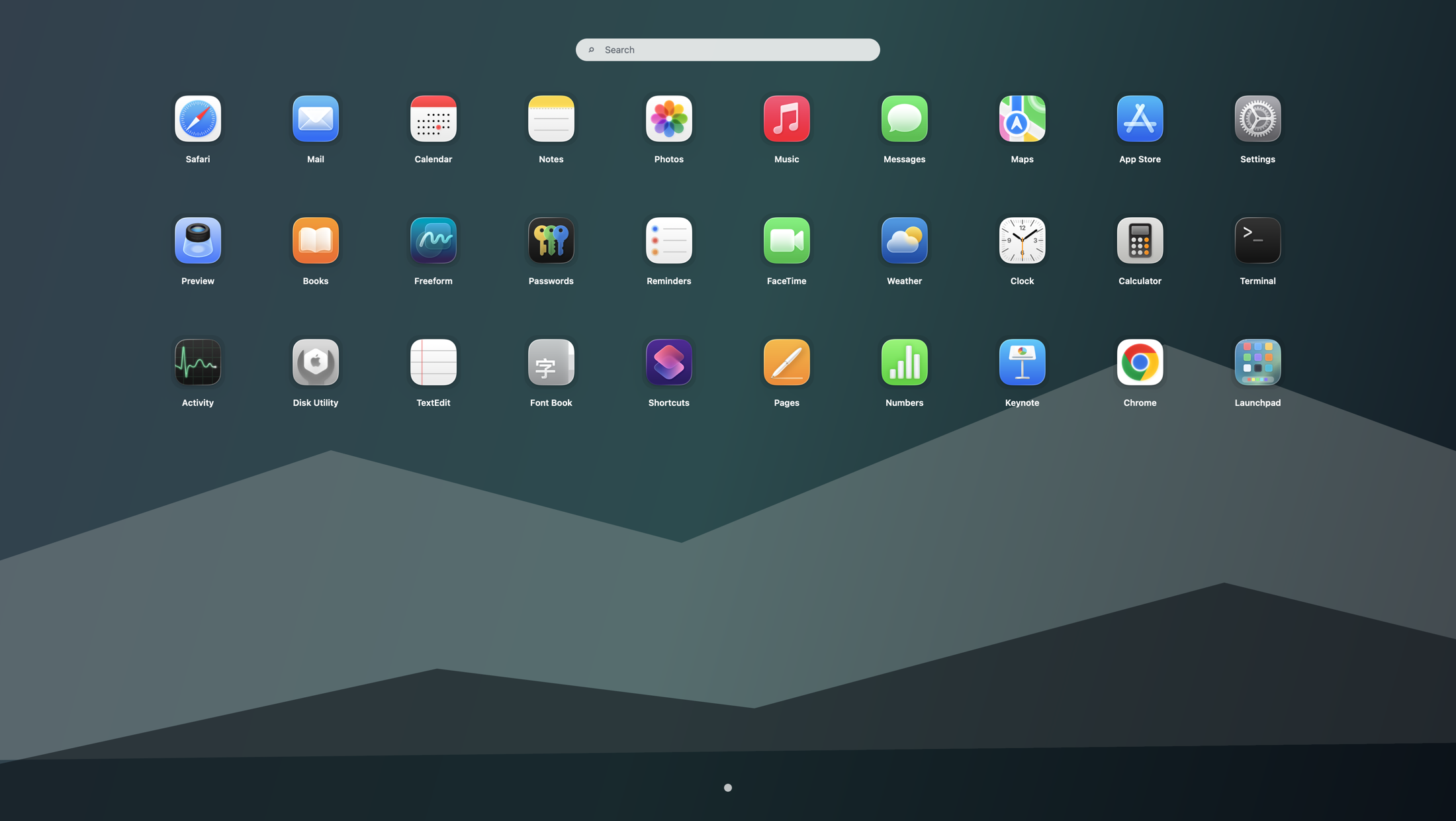
When a Launchpad shortcut is better than search alone
A shortcut-based fullscreen launcher is best when you often open secondary tools, remember icons better than names, or want a calm visual surface before choosing an app. This is also why users searching for how to show all apps on macOS Tahoe often end up wanting a shortcut, not just a list.
How to restore the old “press once, browse everything” experience
Install Launchpad, set your preferred trigger, and keep it dedicated to visual browsing. That gives you back the fastest part of the old experience without fighting the rest of macOS. If you need setup steps, continue with bring Launchpad back on Tahoe. If you want the Chinese companion page, read macOS Tahoe 启动台快捷键怎么设置.
Search terms this guide answers
FAQ
How do I open a Launchpad-style app grid with one shortcut on macOS Tahoe?
Install Launchpad, map it to a keyboard shortcut or hot corner, and use that trigger whenever you want a fullscreen grid for browsing apps visually.
Why are people searching for a Launchpad shortcut after upgrading to Tahoe?
Because the real problem is not a missing random shortcut. It is the missing habit of opening all apps visually with one quick action.
Is a hotkey better than relying only on Spotlight or the Dock?
Yes, if you browse by recognition. Spotlight is still best for exact names and the Dock is still best for favorites, but a fullscreen grid shortcut restores the missing middle layer.