Quick answer
The best app launcher for macOS Tahoe uses a layered workflow.
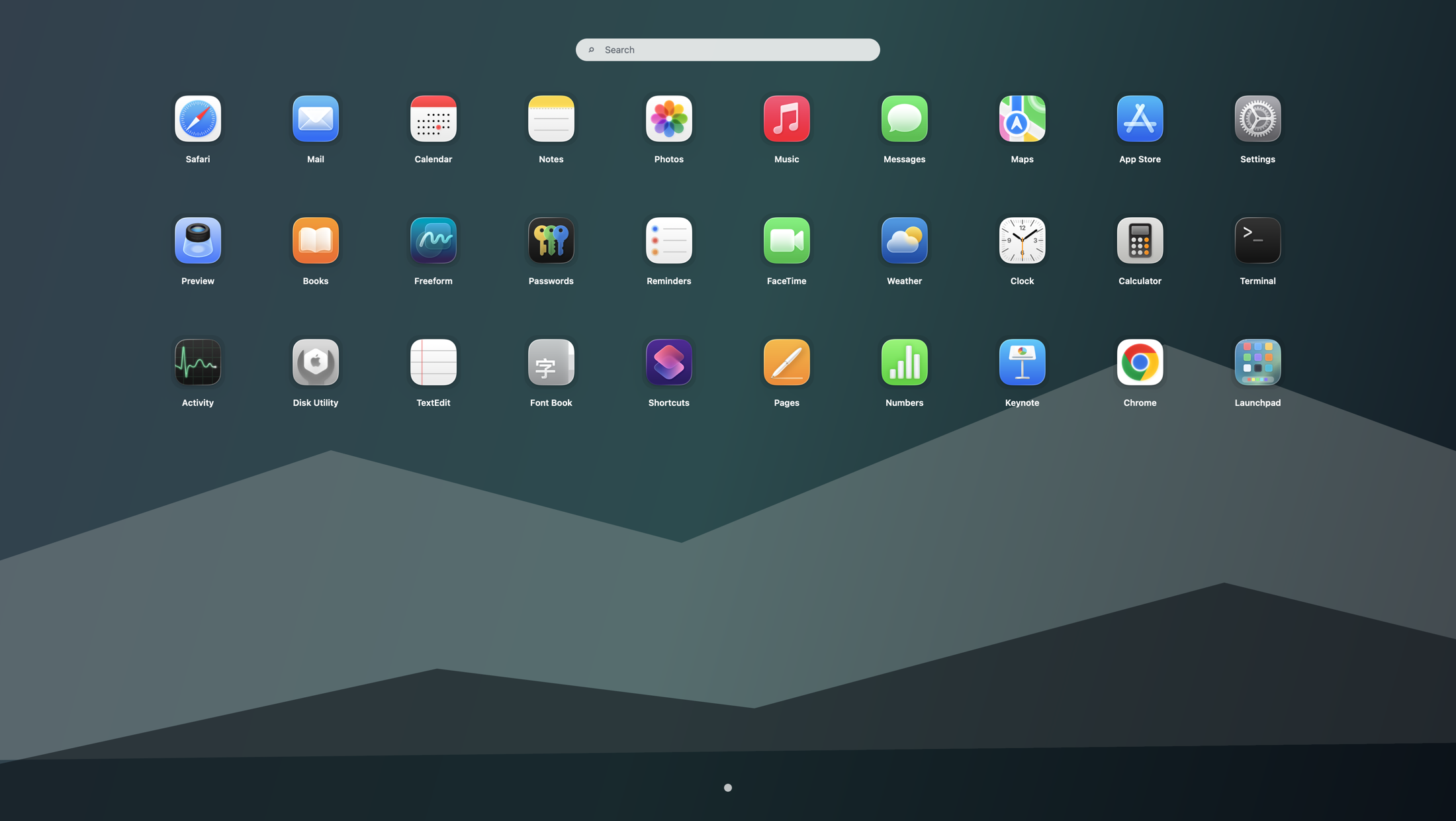
If you upgraded to macOS Tahoe 26 and keep searching for the old Launchpad feel, the best answer is a layered workflow. Use Spotlight when you know the app name, keep your most-used tools in the Dock, use Finder when you need the raw Applications list, and open Launchpad when you want a visual fullscreen overview with icons, pages, folders, and scanning by memory.
If your real search is closer to “Launchpad alternative on macOS” or “how to show all apps on macOS Tahoe,” those guides support the same workflow from different entry points.
Search by name
Spotlight stays fastest when you already know what to type and want an app open immediately.
Launch daily favorites
The Dock still works best for a small set of apps you open all day without browsing.
Browse every app visually
Launchpad restores the old habit of scanning icons, flipping pages, opening folders, and seeing all apps from one clean grid.
The old Launchpad experience was really an app launcher workflow
Many users do not miss Launchpad only because of the screen layout. They miss the sequence: open one fullscreen layer, scan familiar icon positions, and click without recalling an exact app name. That is why searches such as "no Launchpad on macOS Tahoe", "show all apps on macOS Tahoe", and "Launchpad shortcut on Tahoe" often turn into the same broader macOS Tahoe app launcher question.
How each launcher method should split the job
| Method | Best when | Weak point |
|---|---|---|
| Spotlight | You know the app name and want the fastest typed search. | Less useful when you browse by icon memory or want a grid overview of everything installed. |
| Dock | You launch the same small set of apps every day and want one-click access. | It gets crowded quickly when too many apps or folders live there. |
| Finder Applications | You need file-level app management, install verification, or the full Applications list. | It is accurate, but slower than a purpose-built launcher for everyday opening. |
| Launchpad | You want the old fullscreen grid, page-based browsing, folders, search, and a dedicated shortcut again. | Requires installing a dedicated launcher on Tahoe. |
A practical setup in 10 minutes
- Keep only your true daily drivers in the Dock so it stays small and readable.
- Use Spotlight for one-step typed launches and file search when you already know what you want.
- Install Launchpad from the official download page so you have a dedicated fullscreen browse layer again.
- Assign a shortcut or hot corner using the steps from the Launchpad shortcut guide.
- Organize visual groups with the Launchpad folders guide and keep the first page reserved for apps you browse often but do not want pinned in the Dock.
Map common Tahoe questions to the right guide
If your immediate question is “How do I see everything?”, start with how to show all apps on macOS Tahoe. If your real issue is “How do I open the grid with one action?”, go to the shortcut guide. If you want category-based browsing, the next step is Launchpad folders on Tahoe. If you are still comparing options, read the broader Launchpad alternatives page.
Which kind of Mac user benefits most from this workflow?
- Visual browsers: you remember icon position faster than app names and want a clean all-apps grid again.
- Large-library users: the Dock is too small, but Finder feels too administrative for everyday launching.
- Shared-Mac households or teams: a fullscreen launcher makes it easier to spot lesser-used apps without teaching everyone a text-first workflow.
- Keyboard-plus-grid users: you want Spotlight for exact search, but still want one shortcut to open a browsable launcher.
When a fullscreen launcher beats Spotlight alone
Spotlight is excellent when you know the exact name of the app. It is less satisfying when you are deciding between several tools, trying to remember which utility you installed, or reopening something you recognize visually. That “I know it when I see it” case is exactly where a fullscreen launcher still wins on Tahoe.
How this compares with other Launchpad alternatives
A stronger workflow does not mean replacing every built-in tool. Dock folders can help with a few groups, but they do not recreate the old page-based browsing flow. Finder is reliable for management, but not ideal for repeated launching. If you want the more explicit comparison, use Launchpad alternatives for macOS, Dock folders vs Launchpad, and Applications folder vs Launchpad.
Who benefits most from this setup
This workflow is strongest for people with large app libraries, shared household Macs, creative tools that are not pinned in the Dock, and anyone who built years of muscle memory around a fullscreen grid. If you mainly type app names, Spotlight may already be enough. If you miss the older browsing habit, a dedicated launcher makes a bigger difference than another Dock folder.
Keep the rest of Tahoe unchanged
You do not need to replace Spotlight, Finder, or the Dock. Launchpad works best as the visual layer in a broader system. If you want setup details, use the bring-back guide. If you want the Chinese companion page, use the localized workflow guide.
Search terms this guide answers
FAQ
What is the best macOS Tahoe app launcher workflow if I miss Launchpad?
Use a split workflow: Spotlight for typed search, the Dock for everyday favorites, and Launchpad for fullscreen visual browsing. Together they form the best macOS Tahoe app launcher setup when you want the old grid habit back.
How should Spotlight, the Dock, and Launchpad split the job?
Spotlight is for exact-name search, the Dock is for the handful of apps you open constantly, and Launchpad is for all-apps browsing, folders, pages, and shortcut-driven access.
Can I restore the old Launchpad experience without replacing Spotlight?
Yes. Launchpad adds back the fullscreen grid and can live alongside Spotlight, the Dock, and Finder without changing the rest of your Mac workflow.
Is this better than just using Dock folders?
Usually yes for large app libraries. Dock folders are fine for a few groups, but they do not recreate the old fullscreen pages-and-icons experience or the “show me everything” overview.